
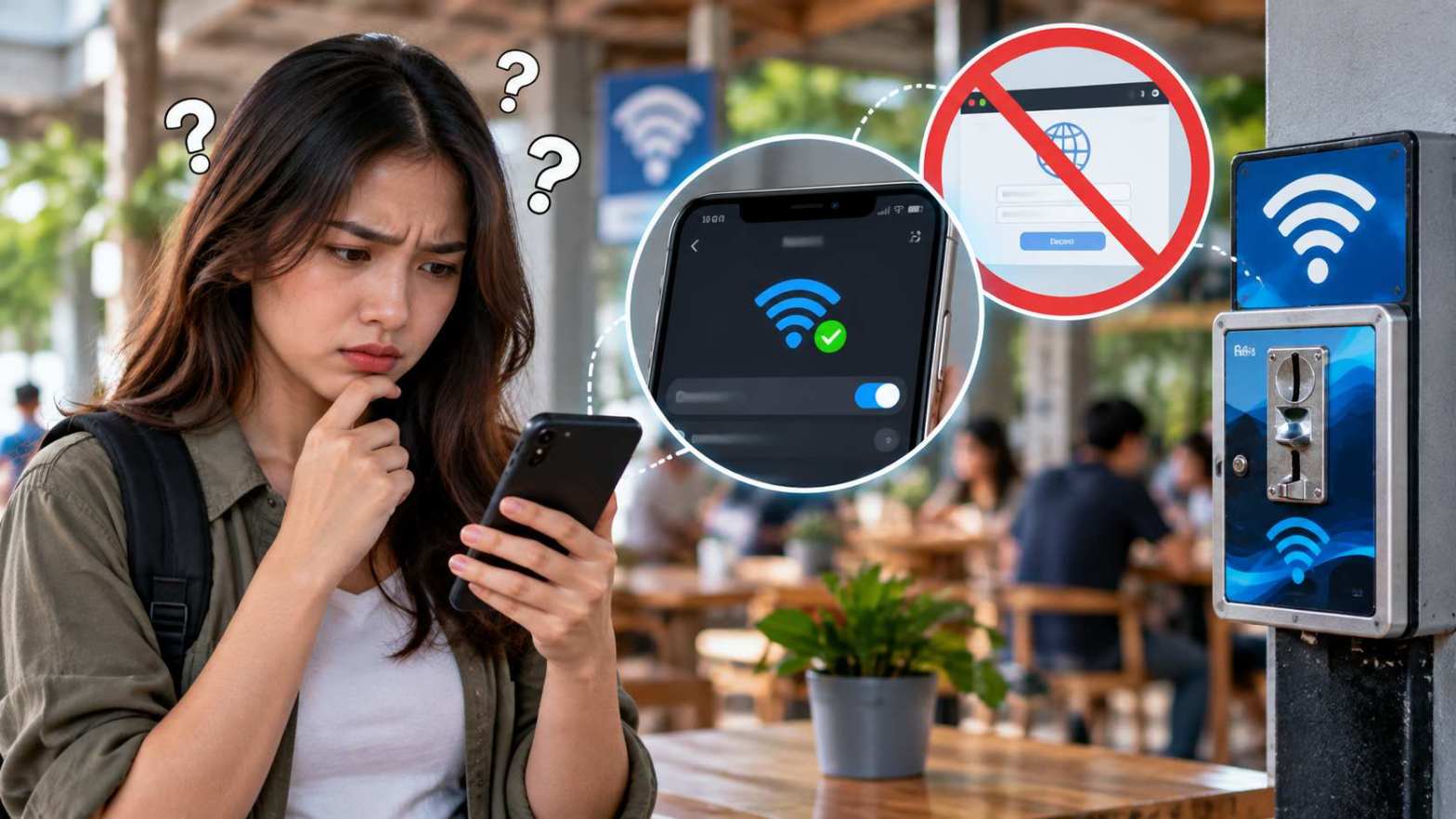
Piso WiFi can connect your phone, laptop, or other device to the WiFi network without opening the login page. This issue usually happens when the device detects the Piso WiFi connection but does not redirect the browser to the captive portal. The login page normally appears after you connect to the Piso WiFi network. It may require you to enter a payment code, access code, or other details before you can use the internet. If the page does not appear, you may see a WiFi icon that says “Connected” even though you cannot browse websites.
Many users try to open 10.0.0.1 because this address is commonly used to access the Piso WiFi login page. Some users also try 10.0.0.0.1, but this address is usually entered by mistake. The correct local address depends on the Piso WiFi router or hotspot setup. In many Piso WiFi systems, 10.0.0.1 works as the gateway address. However, network settings can differ between machines and installations. This guide explains why Piso WiFi says connected without showing the login page and how you can fix the problem step by step.
What Does “Connected Without Login Page” Mean on Piso WiFi?
When your device connects to Piso WiFi, it first communicates with the local network. Your device can detect the WiFi signal and receive a network connection. The device may then display “Connected” because it has successfully joined the wireless network. This status does not always mean that internet access is active. Piso WiFi can still require authentication or payment before it allows your device to access the internet.
The login page works as a captive portal. This portal checks your connection and shows the page that lets you enter the required access details. If the captive portal does not open, your device can remain connected to the WiFi network without giving you internet access. The problem can come from the browser, DNS settings, cached network data, VPN settings, or the Piso WiFi router itself.
Why Does Piso WiFi Connect But Not Open the Login Page?
The most common reason is that the device does not receive the redirect from the Piso WiFi system. A captive portal usually detects a new connection and redirects the browser to the login page. Modern phones and computers use their own network detection systems to check whether internet access is available. If this detection process does not work correctly, the login page may not open automatically.
Your browser can also affect the process. A browser may keep an old page in its cache or attempt to use a secure HTTPS connection before the Piso WiFi system can redirect the request. The captive portal may work better when you open a normal HTTP website or directly enter the local gateway address.
Another common cause is an active VPN or private DNS service. These services can change how your device handles network requests. A Piso WiFi system may need to intercept certain requests and redirect them to its login page. A VPN or private DNS service can prevent this redirection from working correctly.
How 10.0.0.1 Opens the Piso WiFi Login Page
The address 10.0.0.1 is a private IP address that can serve as the gateway for some Piso WiFi systems. When you connect to a Piso WiFi network, your device receives network information from the router. This information can include the IP address, gateway address, and DNS server. If the Piso WiFi installation uses 10.0.0.1 as its gateway, you can enter this address in your browser to reach the local login page.
Open your browser and type 10.0.0.1 directly into the address bar. Do not type it into the Google search box. The browser should attempt to connect directly to the local device. If the Piso WiFi system uses this address, the login page should appear. Users who want to understand the relationship between these local gateway addresses and router access can also refer to https://100001.site/ for additional information.
The address 10.0.0.0.1 is different from 10.0.0.1. The extra zero can cause the address to fail. Users often type 10.0.0.0.1 because they assume it is the correct router address. In most cases, 10.0.0.1 is the address that users should try first when a Piso WiFi system uses this gateway.
What Should You Do If 10.0.0.1 Does Not Open?
If 10.0.0.1 does not open, your Piso WiFi connection may use a different gateway address. You can check the network details on your device to identify the gateway. The gateway is usually the local address that connects your device to the Piso WiFi router.
On an Android phone, open the WiFi settings and select the connected Piso WiFi network. Look for network information such as Gateway, Router, or IP address. The exact option depends on the Android version and phone manufacturer. If the gateway shows 10.0.0.1, enter that address into your browser.
On an iPhone, open Settings, select WiFi, and tap the information icon beside the connected network. Look for the Router field. This field shows the local gateway address used by the WiFi network. You can enter that address into Safari to check whether the Piso WiFi login page opens.
On Windows, you can open Command Prompt and use the ipconfig command. Look for the Default Gateway under the connected WiFi adapter. That address can help you identify the correct local Piso WiFi gateway.
Refresh the Piso WiFi Connection
A simple reconnect can solve many Piso WiFi login problems. Turn off WiFi on your device and wait for several seconds. Turn WiFi on again and connect to the same Piso WiFi network. This action forces the device to create a new network session.
After reconnecting, open your browser and visit a normal website. Avoid using a page that you previously opened because the browser may load the page from its cache. If the Piso WiFi system detects the new session, it may redirect the browser to the login page.
You can also forget the Piso WiFi network and connect again. Open the WiFi settings, select the network, choose Forget This Network, and then reconnect. Enter the WiFi password if the network requires one. This process removes the old connection information and creates a new connection.
Disable VPN and Private DNS Settings
A VPN can prevent the Piso WiFi login page from opening. The VPN sends network traffic through another service instead of allowing the Piso WiFi system to handle the request directly. The Piso WiFi captive portal may fail to detect the connection when the VPN is active.
Turn off the VPN before connecting to the Piso WiFi network. After the login page appears and your session becomes active, you can test whether the VPN works with the connection. Some networks may still block VPN traffic after authentication.
Private DNS can cause a similar issue. Android devices can use Private DNS to handle DNS requests through a selected service. If the DNS service does not work with the Piso WiFi network, the browser may fail to reach the login page. Set Private DNS to Automatic or Off temporarily and reconnect to the Piso WiFi network.
Clear Browser Cache and Try Another Browser
A browser cache can sometimes interfere with captive portal redirects. The browser may remember an earlier page or connection state instead of loading the current Piso WiFi login page. Clearing the cache can remove old data and allow the portal to load correctly.
You can also try another browser. If you normally use Chrome, try another browser available on your device. If the login page opens in the second browser, the problem may relate to the settings or cached data in your main browser.
Another useful step is to open an HTTP website instead of an HTTPS website. Captive portals can have difficulty redirecting secure HTTPS requests because encryption prevents the network from changing the page request in the same way as an HTTP request. An HTTP request can give the Piso WiFi system an easier opportunity to display the login page.
Restart the Device and Reconnect to Piso WiFi
Restarting your device can clear temporary network errors. Phones and computers can sometimes keep old DNS information, network sessions, or connection states after switching between different WiFi networks. A restart can remove these temporary issues.
After restarting, connect to Piso WiFi again. Wait a few seconds for the device to receive its network information. Open the browser and enter 10.0.0.1 if that address is the gateway for the network. If the login page appears, continue with the normal Piso WiFi authentication process.
If the device still shows “Connected” but no internet access, check whether another device can open the login page. This test helps identify whether the problem affects one device or the entire Piso WiFi system.
Check Whether the Problem Affects Other Devices
Try connecting another phone or computer to the same Piso WiFi network. If the second device opens the login page normally, the Piso WiFi system is probably working. The issue may exist in the settings of the first device.
If every device connects but no device can open the login page, the problem may exist on the Piso WiFi machine, router, hotspot configuration, or network gateway. In this situation, changing browser settings on your phone may not solve the issue.
The Piso WiFi operator may need to check the captive portal, router configuration, DHCP service, DNS settings, or gateway address. A technical problem on the network can prevent all connected users from reaching the login page.
Check Your Device IP Address
Your device needs a valid local IP address to communicate with the Piso WiFi gateway. If the device does not receive the correct IP configuration, 10.0.0.1 may not respond even when the WiFi icon shows a connection.
Check the WiFi network details and look for the device IP address. The IP address should normally belong to the same local network as the gateway. For example, a device may receive an address such as 10.0.0.x when the Piso WiFi gateway uses 10.0.0.1.
If the device has an unusual IP address or does not show a gateway, disconnect and reconnect to the network. You can also restart the device to request new network information from the router.
Why 10.0.0.0.1 Usually Does Not Work
Many users search for the Piso WiFi login page by typing 10.0.0.0.1. This address contains an extra zero compared with 10.0.0.1. The correct address must match the gateway configured by the network.
If the Piso WiFi gateway uses 10.0.0.1, typing 10.0.0.0.1 will not take you to the login page. Always check the gateway shown in your device network settings instead of relying on a guessed address.
The safest approach is to identify the actual router or gateway address first. If the gateway is 10.0.0.1, use that address. If the gateway has another value, use the displayed address instead.
When the Piso WiFi Login Page Still Does Not Appear
If you have reconnected to Piso WiFi, disabled VPN services, checked private DNS, cleared browser data, and tested 10.0.0.1 without success, the issue may be outside your device. The Piso WiFi system may have a configuration problem or temporary service issue.
The network operator may need to restart the Piso WiFi machine or check the captive portal settings. The operator may also need to confirm that the gateway, DHCP service, DNS service, and login portal are working correctly.
If other users have the same problem, report the issue to the Piso WiFi operator. If only your device has the problem, continue checking your device network settings and browser configuration.
Final Steps to Fix Piso WiFi Connected Without Login Page
A Piso WiFi network can show “Connected” even when the login page does not appear. The WiFi connection only confirms that your device has joined the wireless network. It does not always confirm that the Piso WiFi system has authenticated your session or granted internet access.
Start by reconnecting to the network and opening the browser. Try 10.0.0.1 if it is the network gateway. Avoid using 10.0.0.0.1 unless your network settings specifically show that address. Check your device gateway if 10.0.0.1 does not work.
Next, disable VPN and Private DNS settings, clear the browser cache, try another browser, and restart the device. Test another device to determine whether the problem affects your device or the entire Piso WiFi network. These steps can help identify the cause and restore access to the Piso WiFi login page.

